
Similar Posts
#010 Using and Avoiding Dock Targets
Dock targets are great, they greatly simplify the ability to place a dock panel in Visual Studio in just the right location. Like a mind reading snap-to feature 🙂 Sometimes these dock targets get in the way with what you’re trying to do. If you need to move a dockable panel to a very specific…
#003 Show/Hide White Space in Visual Studio
Show and Hide White Space in documents. [CTRL]+[R] + [CTRL]+[W] = Toggle Show|Hide White Space [Footnote] Jan 8th, 8:15pm Sorry for my voice in today’s video’s – I’m currently befriending a bottle of Vitamin C to try and keep this sore throat in check. But I’m already behind on my new years resolution. There are…
#016 Understanding and Customizing Keyboard Shortcuts
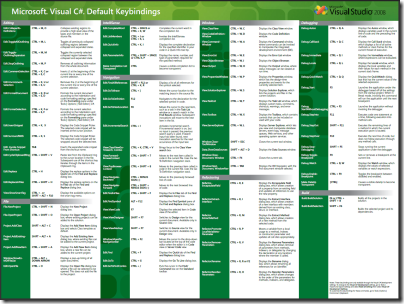
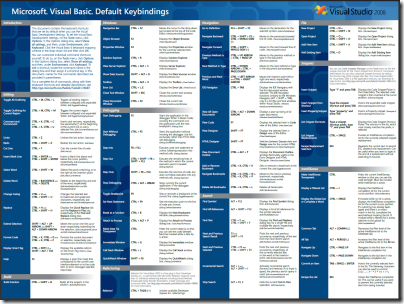
Visual Studio has a ton of Keyboard shortcuts built in. In fact, there are HUGE PDF Prints available for VS2005 C# and Visual Basic, as well as VS2008 C# and VS2008 Visual Basic. If you want to change or add to the current keyboard shortcuts, this video shows you how. Visual Studio 2010 Keyboard Shortcuts for…